
By Eldad Gaih
Creative Director at Vitna Media with over a decade of experience in web design and development. I specialize in building AI-powered internal solutions and digital products that scale brands through performance-driven technology.
Look, I’m going to be honest with you. By 2026, most of the “AI magic” in design tools has finally settled down. We’re past the phase where every company was slapping “AI-powered” on their landing page and calling it innovation. What we’re left with now is actually useful.
Here’s the thing: I can’t afford to show up to client meetings with prototypes that fall apart the second someone types something unexpected into a form field. If your prototype doesn’t handle real logic, variable states, and those annoying edge cases that always come up? That’s not design — that’s a pretty slideshow.
This list isn’t about the flashiest tools or the ones with the best marketing. These are the six I actually use when the stakes are high and the deadlines are real. I picked them based on three things: does the logic actually work, can I move fast without getting bogged down, and will my developers want to kill me during handoff.
1. Moonchild AI — The Intent-Based Orchestrator
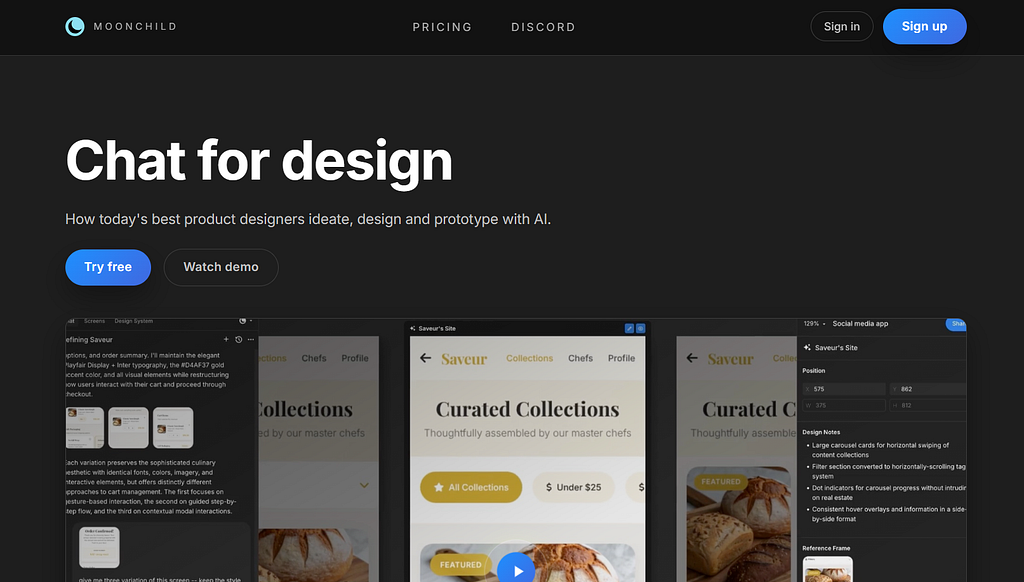
Moonchild AI has completely changed how I approach the early stages of a project. We don’t start by drawing boxes anymore. We start by defining what we’re actually trying to accomplish. Moonchild acts like an orchestrator — it takes your product requirements and spits out functional, multi-state logic maps before you even think about pixels.
How I actually use it:
A few weeks back, I was working on a healthcare platform under a brutal deadline. We had this massive 20-page PRD stuffed with compliance requirements and conditional logic that made my head spin. Instead of spending two days manually mapping out every possible user path, I just fed the whole document into Moonchild’s Logic Engine.
 The entered prompt and Product Requirements Document (PRD)
Within minutes, it generated this comprehensive flow that caught critical dead-ends in our patient onboarding process that we’d completely missed. But here’s what really sold me: it didn’t just give me a flowchart. It created what they call a “ghost prototype” — this low-fidelity, clickable skeleton where I could actually test the logic before committing to any design decisions.
 The screens it generated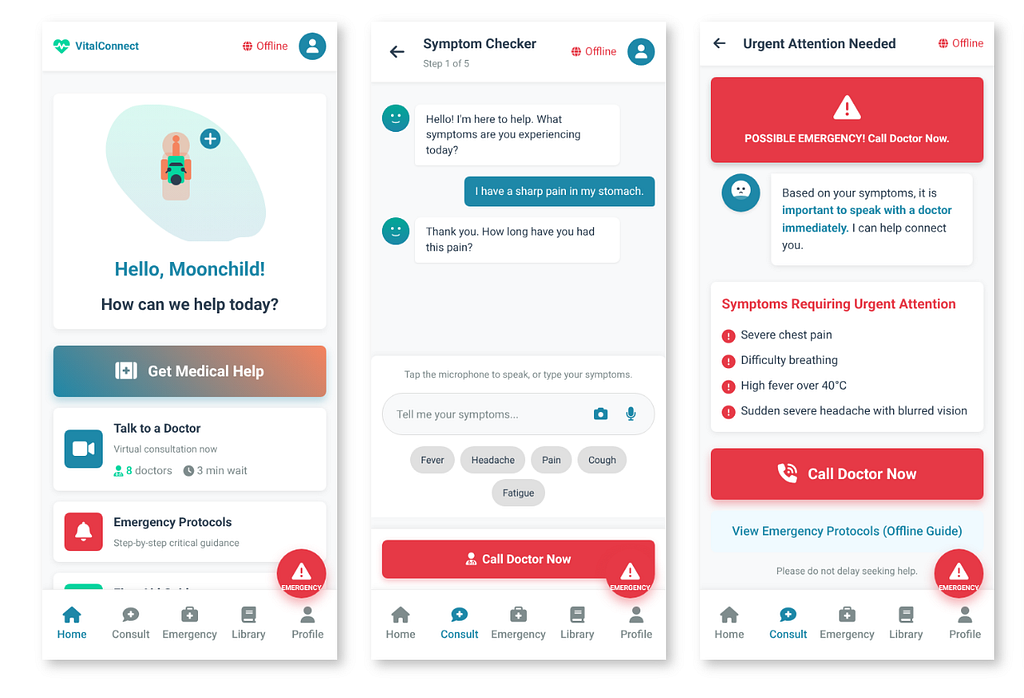
The reality check:
The structural integrity is fantastic. It forces you to think through the “how” before you get seduced by the “what looks cool.” Here’s something I learned the hard way: if you’re getting generic-looking output, you’re probably not using the Design System function or you’ve got the Silver toggle on instead of Gold.
The Design System feature lets you upload your actual brand assets upfront, so Moonchild generates screens that actually look like your product from the start. And the Gold toggle? That’s where the magic happens. It prioritizes quality over speed and honestly generates some of the most sophisticated UI screens I’ve seen from any tool on this list. When I first started using Moonchild, I was using Silver mode for everything because I thought faster was better. Big mistake. Once I switched to Gold and uploaded our design system, the quality jumped dramatically.
That said, sometimes the AI can get a little too creative and generate interactions that your current API can’t actually support. I’ve learned to manually “ground” it by uploading our technical documentation upfront so it knows what’s actually feasible.
Use it for: Mapping complex user logic from text-based requirements, or quickly generating all those annoying edge case screens like error states and empty states that everyone forgets about until the last minute.
Skip it if: You’re working on pure branding assets — think logo systems, brand guidelines, or marketing collateral that lives outside of actual product interfaces. Moonchild is built for product logic, not brand identity work.
Alternatives: Relume AI if you just need sitemaps, or FigJam AI for basic brainstorming sessions.
2. UXPin — The Logic King
UXPin is my absolute source of truth for enterprise SaaS work. While everyone else is still playing with vectors and linked frames, UXPin is playing with actual code. Their Merge technology lets me pull in real React components from our production library. This means the prototype and the product are literally built from the same DNA.
How I actually use it:
I just finished redesigning this massive data-filtering dashboard for a fintech client. In any other tool, I would’ve had to create hundreds of individual frames to show all the different filter combinations. The file would’ve been a nightmare to maintain.
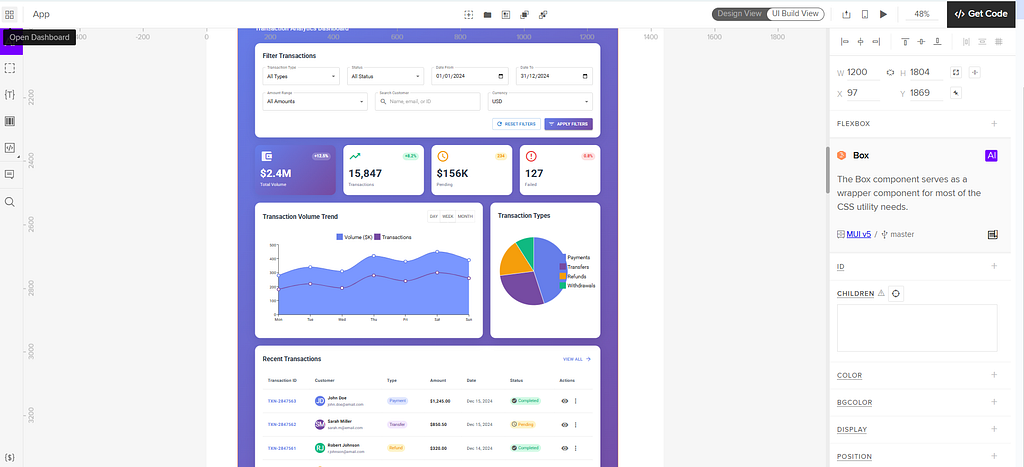
In UXPin, I used Variables and Expressions to build a single “Search” component that actually filtered a live JSON dataset right there in the prototype. When I sat down with the engineering team, I didn’t have to explain the filtering logic with hand-wavy gestures and sticky notes. I just showed them the working prototype, which was already using their own React code. They got it immediately.
The reality check:
The learning curve is basically a vertical cliff. It feels less like a design tool and more like an IDE. I’ve watched junior designers get completely overwhelmed by the conditional logic panels. There’s also a heavy upfront investment — if your engineering team hasn’t already prepared a clean component library for Merge, you lose about half the tool’s value.
Sometimes it feels like overkill. Like driving a tank to the grocery store when you just need to grab milk. If you just need a quick mockup for a stakeholder meeting tomorrow, this is not your tool.
Use it for: High-fidelity prototyping for data-heavy applications and enterprise software. Also great for building and maintaining design systems that sync directly with GitHub.
Skip it if: You’re a solo designer without an established engineering team or component library. You’ll spend more time fighting the tool than designing.
Alternatives: Axure RP if you want the logic without the code-sync, or Framer if you need something more approachable.
3. Uizard — The Rapid Prototyping Workhorse
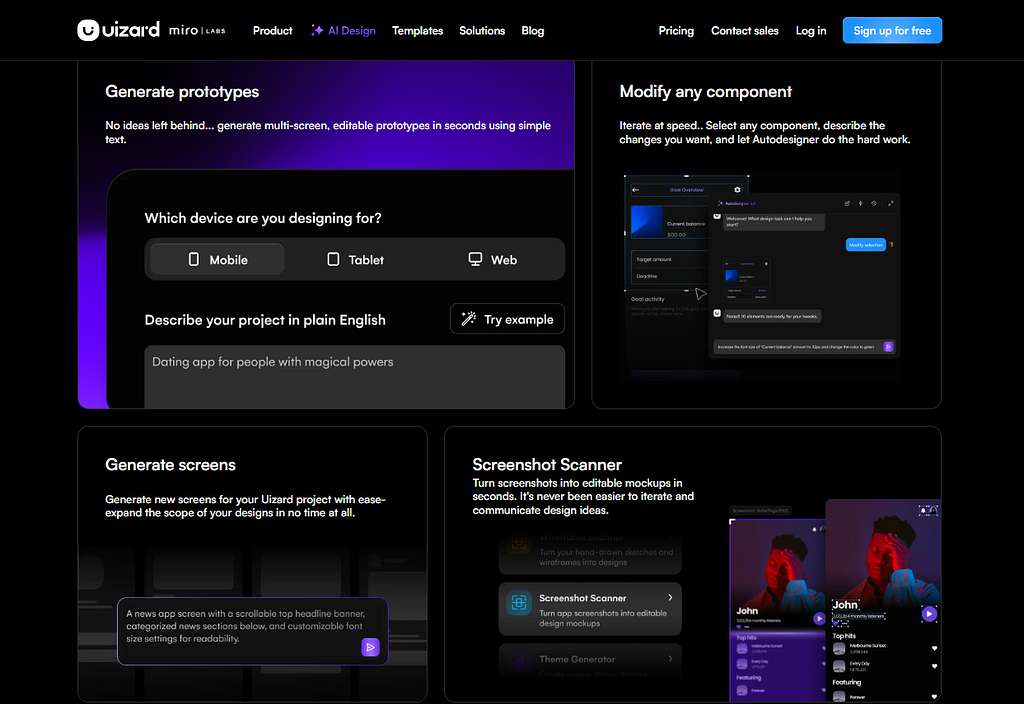
Uizard is my “Wednesday tool.” It’s what I reach for when there’s a stakeholder meeting on Thursday morning and all I have are some whiteboard sketches from Tuesday. It excels at one thing: turning low-fidelity ideas into high-fidelity mockups incredibly fast.
How I actually use it:
Last month we were auditing this legacy mobile app that hadn’t been touched since 2019. It was a mess. I used Uizard’s Screenshot-to-UI feature to basically “ingest” the entire old app. It converted those crusty screenshots into editable components and applied our new 2026 brand theme in seconds.
This let me spend my actual time on improving the UX instead of the mind-numbing task of recreating old screens pixel by pixel. It’s the fastest bridge I’ve found between “what we currently have” and “what we want to build.”
The reality check:
Uizard is built for speed, not for bespoke craftsmanship. The animation engine is pretty basic you’re not doing any complex parallax effects or custom micro-interactions here. And the Autodesigner 2.0 prompts can be hit-or-miss. Sometimes it nails “Modern Minimalist” and other times it spits out something that looks like it came from a 2015 template library.
It’s a tool for breadth, not depth. Great for exploring multiple directions quickly, not so great for pixel-perfect execution.
Use it for: Rapidly modernizing legacy UI and generating mockups from sketches. Also fantastic for collaborative design sprints where non-designers need to contribute.
Skip it if: You need to prototype a signature interaction or a highly unique, brand-defining animation. That’s not what this tool was built for.
Alternatives: Visily or Balsamiq if you want to stay in low-fidelity territory.
4. Figma — The Universal Language
Figma is still the campfire we all gather around. By 2026, it’s evolved into something much more sophisticated than just a collaborative whiteboard. With Advanced Multi-State Variables, it’s closed the gap on a lot of specialized prototyping tools while remaining the best place for teams to actually work together.

How I actually use it:
Figma is my daily driver for probably 90% of my work. We recently used the new Device-Sync feature to test a responsive dashboard across mobile, tablet, and desktop simultaneously. Watching the variable changes ripple across all screens at once was honestly pretty satisfying.
The Dev Mode and Code Connect features have basically replaced what used to be this painful “handoff” phase. Now it’s just continuous synchronization between design and engineering. Everyone lives in the same file from ideation to launch.
The reality check:
Even with all the 2026 updates, Figma still feels like it’s “faking” the web in some ways. It doesn’t handle real inputs well — like actually typing into a text field with validation logic. And those prototyping connection lines? They turn into absolute spaghetti in large files. If you have more than 50 screens in a single flow, the performance starts to chug even on high-end machines.
It’s the ultimate generalist tool. It does everything well, but nothing perfectly. Which is actually fine for most situations.
Use it for: General UI design, team collaboration, and maintaining the source of truth for design systems. Also great for basic interactive prototypes for quick usability testing.
Skip it if: You need your prototype to connect to a live backend or handle complex math-based logic. Figma isn’t built for that.
Alternatives: Penpot if you need open-source, or Adobe Express if you’re already deep in the Adobe ecosystem.
5. Framer — The Motion & Web Specialist
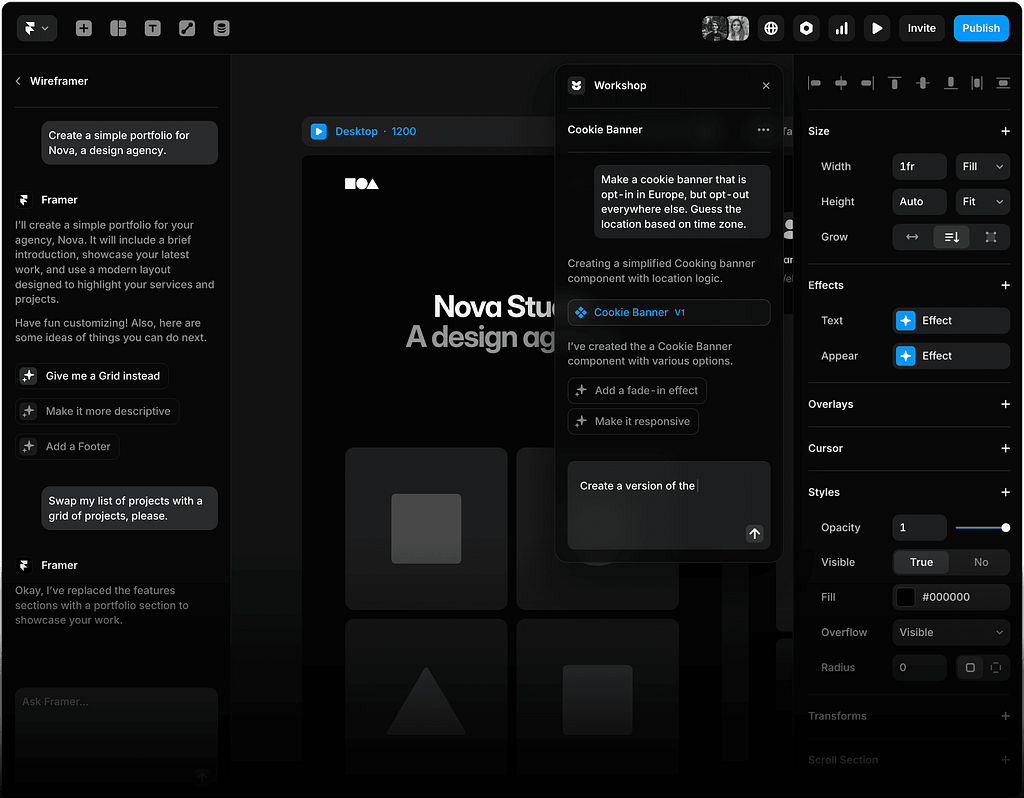
When I’m designing for the web and the “feel” of the motion is just as important as the function, I go straight to Framer. By 2026, the line between “Framer prototype” and “live website” has pretty much disappeared.
How I actually use it:
I used Framer for a landing page that was heavily dependent on scroll-triggered animations and these really nice 3D depth effects. Framer’s Layout Engine mirrors CSS, so I could build the page knowing that when I hit “publish,” it would literally become the live site. No translation layer, no “dev interpretation.”
Using Workshop AI, I generated custom interactive components like tabbed sections and carousels without writing a single line of code. It felt like magic, honestly.
The reality check:
Framer’s greatest strength is also its biggest weakness: it’s built on web standards. If you don’t understand how Stacks and Grids work in CSS, the layout engine will be incredibly frustrating. It doesn’t let you be sloppy the way Figma does. You can’t just drag things around willy-nilly.
Copy-paste a layer and it might end up in a completely different container because of the strict nesting rules. It’s a tool for designers who think like developers — or want to.
Use it for: Designing and shipping high-end, responsive web experiences with advanced motion. Also surprisingly good for building internal presentation decks that need to be interactive.
Skip it if: You’re designing a native iOS or Android app. The export to mobile code is still pretty weak compared to web.
Alternatives: Webflow if you want even more control, or Bubble if you need backend logic too.
6. ProtoPie — The Sensor Specialist
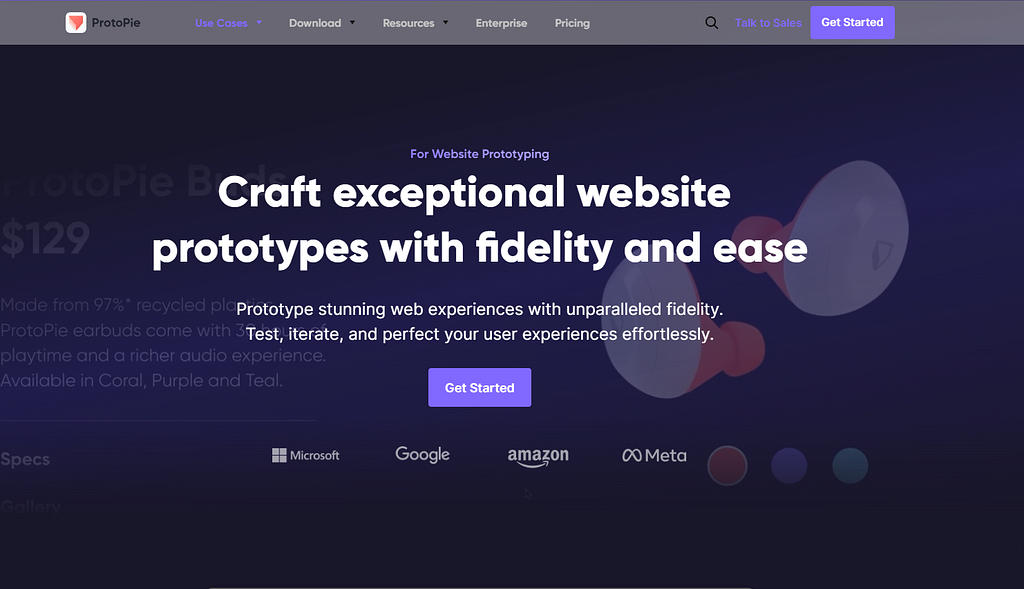
If your product lives on a mobile device and interacts with the physical world — camera, accelerometer, haptic feedback — ProtoPie is the only tool that actually matters. It’s the bridge between software and hardware.
How I actually use it:
I recently designed a barcode-scanning interface for a warehouse management app. The client needed to test the haptic feedback — the specific vibration pattern the phone makes when a scan fails versus when it succeeds. This isn’t something you can fake with static screens.
ProtoPie let me access the phone’s actual Haptic Engine and Camera within the prototype. Through ProtoPie Connect, we even integrated it with external hardware like Arduino boards to simulate real-world IoT behavior. It was the only way to validate the experience before committing to development.
The reality check:
ProtoPie is kind of an island. It doesn’t play particularly well with other tools. You can import from Figma, but the re-syncing process gets messy if you make major changes to your design. It also requires the ProtoPie Player app to be installed on testing devices, which can create friction for remote usability testing.
It’s a specialized tool for specialized problems. If you don’t need sensor-level interaction, you probably don’t need ProtoPie.
Use it for: Prototyping native mobile apps that use camera, gyroscope, haptics, or voice. Also surprisingly useful for automotive interfaces and IoT device dashboards.
Skip it if: You’re designing a standard B2B dashboard that will only ever be used on a desktop browser.
Alternatives: Principle or Origami Studio, though neither are as powerful for sensor integration.
How These Tools Actually Work Together
At Vitna Media, we don’t pick one tool and stick with it religiously. We use what makes sense for each stage of the project. But if I had to strip it down to the essentials, here’s the core workflow that’s become absolutely fundamental:
We start in Moonchild AI to map out the logic and user flows. This is where we get the skeleton solid — the actual thinking work happens here before we even consider colors or typography. Using the Gold toggle and our design system uploaded, Moonchild generates high-quality screens that already feel like our product. This saves us massive amounts of time we used to waste recreating the same components over and over.
Once that structural foundation is locked in and we’ve validated the logic, we move into Figma for final polish and team collaboration. Figma becomes our source of truth where designers and developers live together, iterating on the details while Moonchild’s logic foundation keeps everything from falling apart.
The other tools on this list? They’re specialists we bring in for specific problems. Native mobile app with sensor integration? That’s ProtoPie territory. Enterprise SaaS with complex data states? UXPin shines there. But the Moonchild-to-Figma workflow is the backbone of almost everything we build.
The tools don’t matter nearly as much as understanding what problem you’re actually trying to solve. Pick the right tool for the job, not the one with the best marketing or the most features you’ll never use.
What prototyping tools are you using in 2026? Drop a comment below — I’d love to hear what’s working (or not working) for you.
……
💡 Stay inspired every day with Muzli!
Follow us for a daily stream of design, creativity, and innovation.
Linkedin | Instagram | Twitter


The Top 6 Prototyping Tools I’d Trust for Real Product Design Work in 2026 was originally published in Muzli - Design Inspiration on Medium, where people are continuing the conversation by highlighting and responding to this story.