I Tested the 5 Best AI Tools for UI Design With the Same Prompt

February 7, 2026
I Tested the 5 Best AI Tools for UI Design With the Same Prompt

Here's something that caught my attention — when Khushi Doshi tested five top AI UI design tools using the same prompt, the results were surprisingly different. Instead of just pretty pictures, she evaluated how well each tool handled flow, usability, and real-world practicality. Moonchild AI stood out because it generated a logical, usable app flow that felt intentionally designed — like collaborating with a junior designer who gets modern apps. Figma Make was also impressive for those already working in Figma, helping speed up the process without replacing critical thinking. But tools like Uizard and UX Pilot mostly offered quick, rough drafts — great for ideas, not for polished projects. As Khushi points out, these AI helpers are support, not replacements. They help you get past the dreaded blank screen, but the real decisions still come from you. So, whether you’re a student, freelancer, or in-house designer, the key is how these tools support your thinking — bringing clarity and structure, not just shiny visuals.

How different AI design tools actually behave when given the exact same design problem.
Illustration of a human hand reaching toward a robotic hand on a light background, surrounded by logos of AI-powered design tools including Figma Make, Uizard, Visily, Moonchild AI, Galileo AI, UX Pilot, and UXPin.

Design doesn’t always start with calm conditions. Often, it begins with a blank screen and a tight deadline. In such moments, the promise of AI design tools — “instant UI flows” and “AI-generated screens” — can feel too good to ignore.

But do these tools actually help in real design workflows? Or are they just shiny gimmicks?

To find out, I tested five popular AI design tools using the same prompt and the same criteria:
not just visuals, but clarity, flow logic, usability, and real-world usefulness.

How I Evaluated the Outputs

Rather than focusing on “pretty screens,” I judged these tools on real UX criteria:

  • UX logic: Does the flow make sense end-to-end?
  • Information hierarchy: Can a user understand what to do next?
  • Pattern familiarity: Does it use common mobile commerce UI conventions?
  • Design consistency: How uniform are spacing, components, and typography?
  • Editability & workflow: Can I build further on this in a real project?
  • Free-tier experience: What I actually got with no paid plan.

These criteria reflect things I care about as a practicing designer — not a marketer.

The Prompt I Used (Same Across All Tools)

Design a mobile quick commerce grocery app that helps users quickly find items, add them to the cart, and place an order. The experience should feel fast, familiar, and trustworthy, covering the full flow from home to checkout and order tracking. Keep the UI clean, simple, and easy to understand, using common grocery app patterns with minimal steps.

I chose this prompt because quick commerce apps are something most people already use. This made it easier to judge whether the AI understood real user behavior, not just visual styling.

Tool 1 — Moonchild AI

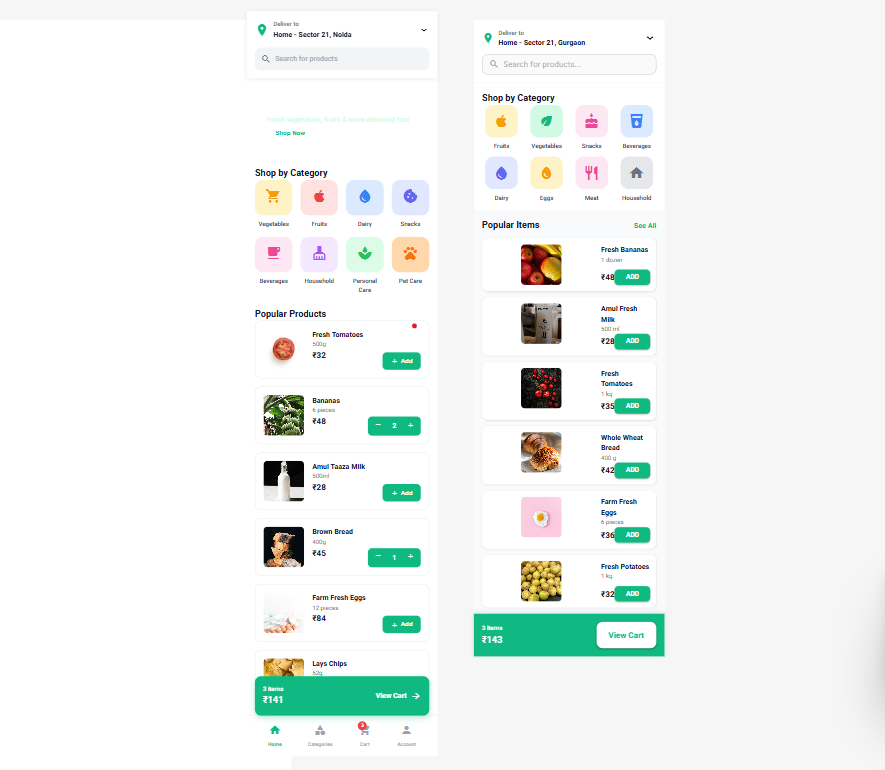
Screens generated by Moonchild AI for a quick commerce applicationScreens generated by Moonchild AI

Moonchild AI generated the most usable flow of all tools. It didn’t feel like a random mockup — it felt designed, with intention.

What It Did Well

  • Layouts felt purposeful and balanced
  • Visual hierarchy was clear without chaos
  • Navigation felt familiar from real apps
  • Spacing and components looked like a startup’s working screens
  • Easy to continue working on in Figma

When I inserted the prompt, the screens felt like coming from someone who has actually studied modern product apps, not a generic template generator.

Limitations I Noticed

  • Higher-level refinements still require manual work
  • Control over micro interactions isn’t perfect

Who It’s Best For

Designers who want usable flows with minimal cleanup, especially early in a project.

Moonchild felt less like an AI experiment and more like collaborating with a junior designer who already understands how real apps are built.

Tool 2 — UXPin
Screens generated by uxpin for a quick commerce applicationScreens generated by UXPin

UXPin felt more like a system-driven assistant than a pure AI generator.

What It Did Well

  • Solid structural layouts
  • Good for component-based thinking
  • Feels governed by design logic rather than randomness

Limitations I Noticed

  • Free plan is limited — it gives about 10 free prompts and 13 days until your trial ends unless you upgrade
  • The visuals can feel generic and safe
  • You still need manual tweaks to make screens feel finished

Free Experience Notes

On the free plan, I could get some screens and interactions before I hit the limit. They also provide a large number of components to choose from.

Who It’s Best For

Designers focusing on structured system layouts and early interactive prototypes.

UXPin is reliable when structure matters more than style, especially if you’re thinking in systems rather than visuals.

Tool 3 — Uizard

Screens generated by Uizard for a quick commerce applicationScreens generated by Uizard

Uizard is fast and accessible, but that speed comes with trade-offs.

What It Did Well

  • Extremely quick output
  • Intuitive for early drafts
  • Helps break creative blocks

Limitations I Noticed

  • Alignment and spacing inconsistencies
  • Customization is shallow
  • Outputs often feel like “startup templates”
  • Can’t generate deep multi-screen flows cohesively

Free Experience Notes

The free tier lets you create a couple of small projects, but screens and components are capped, and export to professional tools like Figma is not clean or structured .

Who It’s Best For

Beginners and idea exploration, not detailed UX workflows.

Uizard shines as a quick starting point, but it quickly shows its limits once you move beyond rough ideas.

Tool 4 — UX Pilot (with Galileo AI engine)

Screens generated by UX Pilot for a quick commerce applicationScreens generated by UX Pilot (Galileo AI)

UX Pilot felt like a mixed bag.

What It Did Well

  • Gives a decent visual idea
  • Generates quick references

Limitations I Noticed

  • Prompt understanding was inconsistent
  • Generations are limited — free plans often let you generate only around 7 screens, 45 credits (one time)
  • Hard to create full, connected flows

Free Experience Notes

By the time I tried to push beyond basic screens, I hit credit and generation limits fast.

Who It’s Best For

Visual idea generation and concept references.

UX Pilot is useful for early visual direction, but it struggles to hold up once you ask it to think in flows instead of screens.

Tool 5 — Figma Make

Screens generated by Figma Make

Figma Make sits differently because it lives inside Figma itself.

What It Did Well

  • Interprets natural language prompts very well
  • Keeps layout logic consistent
  • Ideal for adding AI help into an existing design

Limitations I Noticed

  • Free users have AI credit limits, and these credits can run out quickly (the policies around limits are still evolving and not clearly documented)
  • Sometimes over-consumes credits for small tweaks
  • Free version doesn’t allow you to paste the generated design on to a new figma file to change it manually

Free Experience Notes

Despite credit limitations, it was easy to iterate and refine within Figma’s familiar canvas.

Who It’s Best For

Designers already working in Figma who want AI assistance inside their workflows.

Figma Make works best when you already have design intent — it doesn’t replace thinking, but it accelerates it inside a familiar workspace.

Detailed Comparison Table

A side-by-side comparison of how popular AI design tools actually perform in real UX workflows — beyond just visual output.

What Surprised Me

I expected AI tools to perform as automated helpers, but what stood out was how differently they interpret the same prompt.

Some tools focused on visuals, others on structure, and very few balanced both. A tool that looks great at first glance doesn’t necessarily think like a designer.

What I Recommend

AI tools don’t replace designers.
They mainly help you get past the blank screen.

After trying all five tools with the same prompt, Moonchild AI felt the most useful overall.

What stood out to me was that Moonchild didn’t generate random screens. It understood the full app flow from home to checkout and the layouts felt intentional rather than stitched together.

Figma Make is also a strong tool, especially if you already work inside Figma and want AI help while refining designs. However, as a starting point, Moonchild helped me think more clearly about structure and flow from the very beginning. Another practical advantage was that I could paste and further refine the generated screens directly in Figma without needing a paid plan, which isn’t possible with Figma Make.

If I had to choose one tool to kick-start a project quickly and with less friction, Moonchild felt the most reliable.

In the end, AI works best as support, not as a replacement. The real design decisions still come from the designer.

Final Thoughts

If you’re a designer — student, freelancer, or early-career — these tools can help, but you control how you use them.

What matters most is how a tool supports your thinking, not how polished it looks on a random prompt.

……

💡 Stay inspired every day with Muzli!

Follow us for a daily stream of design, creativity, and innovation.
Linkedin | InstagramTwitter

Stay inspired every day with Muzli!like

I Tested the 5 Best AI Tools for UI Design With the Same Prompt was originally published in Muzli - Design Inspiration on Medium, where people are continuing the conversation by highlighting and responding to this story.

Audio Transcript

How different AI design tools actually behave when given the exact same design problem.

Illustration of a human hand reaching toward a robotic hand on a light background, surrounded by logos of AI-powered design tools including Figma Make, Uizard, Visily, Moonchild AI, Galileo AI, UX Pilot, and UXPin.

Design doesn’t always start with calm conditions. Often, it begins with a blank screen and a tight deadline. In such moments, the promise of AI design tools — “instant UI flows” and “AI-generated screens” — can feel too good to ignore.

But do these tools actually help in real design workflows? Or are they just shiny gimmicks?

To find out, I tested five popular AI design tools using the same prompt and the same criteria:
not just visuals, but clarity, flow logic, usability, and real-world usefulness.

How I Evaluated the Outputs

Rather than focusing on “pretty screens,” I judged these tools on real UX criteria:

  • UX logic: Does the flow make sense end-to-end?
  • Information hierarchy: Can a user understand what to do next?
  • Pattern familiarity: Does it use common mobile commerce UI conventions?
  • Design consistency: How uniform are spacing, components, and typography?
  • Editability & workflow: Can I build further on this in a real project?
  • Free-tier experience: What I actually got with no paid plan.

These criteria reflect things I care about as a practicing designer — not a marketer.

The Prompt I Used (Same Across All Tools)

Design a mobile quick commerce grocery app that helps users quickly find items, add them to the cart, and place an order. The experience should feel fast, familiar, and trustworthy, covering the full flow from home to checkout and order tracking. Keep the UI clean, simple, and easy to understand, using common grocery app patterns with minimal steps.

I chose this prompt because quick commerce apps are something most people already use. This made it easier to judge whether the AI understood real user behavior, not just visual styling.

Tool 1 — Moonchild AI

Screens generated by Moonchild AI for a quick commerce applicationScreens generated by Moonchild AI

Moonchild AI generated the most usable flow of all tools. It didn’t feel like a random mockup — it felt designed, with intention.

What It Did Well

  • Layouts felt purposeful and balanced
  • Visual hierarchy was clear without chaos
  • Navigation felt familiar from real apps
  • Spacing and components looked like a startup’s working screens
  • Easy to continue working on in Figma

When I inserted the prompt, the screens felt like coming from someone who has actually studied modern product apps, not a generic template generator.

Limitations I Noticed

  • Higher-level refinements still require manual work
  • Control over micro interactions isn’t perfect

Who It’s Best For

Designers who want usable flows with minimal cleanup, especially early in a project.

Moonchild felt less like an AI experiment and more like collaborating with a junior designer who already understands how real apps are built.

Tool 2 — UXPin

Screens generated by uxpin for a quick commerce applicationScreens generated by UXPin

UXPin felt more like a system-driven assistant than a pure AI generator.

What It Did Well

  • Solid structural layouts
  • Good for component-based thinking
  • Feels governed by design logic rather than randomness

Limitations I Noticed

  • Free plan is limited — it gives about 10 free prompts and 13 days until your trial ends unless you upgrade
  • The visuals can feel generic and safe
  • You still need manual tweaks to make screens feel finished

Free Experience Notes

On the free plan, I could get some screens and interactions before I hit the limit. They also provide a large number of components to choose from.

Who It’s Best For

Designers focusing on structured system layouts and early interactive prototypes.

UXPin is reliable when structure matters more than style, especially if you’re thinking in systems rather than visuals.

Tool 3 — Uizard

Screens generated by Uizard for a quick commerce applicationScreens generated by Uizard

Uizard is fast and accessible, but that speed comes with trade-offs.

What It Did Well

  • Extremely quick output
  • Intuitive for early drafts
  • Helps break creative blocks

Limitations I Noticed

  • Alignment and spacing inconsistencies
  • Customization is shallow
  • Outputs often feel like “startup templates”
  • Can’t generate deep multi-screen flows cohesively

Free Experience Notes

The free tier lets you create a couple of small projects, but screens and components are capped, and export to professional tools like Figma is not clean or structured .

Who It’s Best For

Beginners and idea exploration, not detailed UX workflows.

Uizard shines as a quick starting point, but it quickly shows its limits once you move beyond rough ideas.

Tool 4 — UX Pilot (with Galileo AI engine)

Screens generated by UX Pilot for a quick commerce applicationScreens generated by UX Pilot (Galileo AI)

UX Pilot felt like a mixed bag.

What It Did Well

  • Gives a decent visual idea
  • Generates quick references

Limitations I Noticed

  • Prompt understanding was inconsistent
  • Generations are limited — free plans often let you generate only around 7 screens, 45 credits (one time)
  • Hard to create full, connected flows

Free Experience Notes

By the time I tried to push beyond basic screens, I hit credit and generation limits fast.

Who It’s Best For

Visual idea generation and concept references.

UX Pilot is useful for early visual direction, but it struggles to hold up once you ask it to think in flows instead of screens.

Tool 5 — Figma Make

Screens generated by Figma Make

Figma Make sits differently because it lives inside Figma itself.

What It Did Well

  • Interprets natural language prompts very well
  • Keeps layout logic consistent
  • Ideal for adding AI help into an existing design

Limitations I Noticed

  • Free users have AI credit limits, and these credits can run out quickly (the policies around limits are still evolving and not clearly documented)
  • Sometimes over-consumes credits for small tweaks
  • Free version doesn’t allow you to paste the generated design on to a new figma file to change it manually

Free Experience Notes

Despite credit limitations, it was easy to iterate and refine within Figma’s familiar canvas.

Who It’s Best For

Designers already working in Figma who want AI assistance inside their workflows.

Figma Make works best when you already have design intent — it doesn’t replace thinking, but it accelerates it inside a familiar workspace.

Detailed Comparison Table

A side-by-side comparison of how popular AI design tools actually perform in real UX workflows — beyond just visual output.

What Surprised Me

I expected AI tools to perform as automated helpers, but what stood out was how differently they interpret the same prompt.

Some tools focused on visuals, others on structure, and very few balanced both. A tool that looks great at first glance doesn’t necessarily think like a designer.

What I Recommend

AI tools don’t replace designers.
They mainly help you get past the blank screen.

After trying all five tools with the same prompt, Moonchild AI felt the most useful overall.

What stood out to me was that Moonchild didn’t generate random screens. It understood the full app flow from home to checkout and the layouts felt intentional rather than stitched together.

Figma Make is also a strong tool, especially if you already work inside Figma and want AI help while refining designs. However, as a starting point, Moonchild helped me think more clearly about structure and flow from the very beginning. Another practical advantage was that I could paste and further refine the generated screens directly in Figma without needing a paid plan, which isn’t possible with Figma Make.

If I had to choose one tool to kick-start a project quickly and with less friction, Moonchild felt the most reliable.

In the end, AI works best as support, not as a replacement. The real design decisions still come from the designer.

Final Thoughts

If you’re a designer — student, freelancer, or early-career — these tools can help, but you control how you use them.

What matters most is how a tool supports your thinking, not how polished it looks on a random prompt.

……

💡 Stay inspired every day with Muzli!

Follow us for a daily stream of design, creativity, and innovation.
Linkedin | InstagramTwitter

Stay inspired every day with Muzli!like

I Tested the 5 Best AI Tools for UI Design With the Same Prompt was originally published in Muzli - Design Inspiration on Medium, where people are continuing the conversation by highlighting and responding to this story.

0:00/0:00
I Tested the 5 Best AI Tools for UI Design With the Same Prompt | Speasy
